Showing posts with label development. Show all posts

Monday, April 23, 2018

Setting Up Local Environment for Developing Oracle Intelligent Bots Custom Components

Oh the joy of having a local development environment is priceless. For most cloud based solutions the story repeats itself being hard to troubleshoot and make changes while developing your project.
Well, this is no different with Oracle Intelligent Bots and for your benefit setting up a local development environment is pretty simple to do.

Before you get started, make sure you have a Node.js downloaded and installed.

Download the OMCe Bots Samples v18.1.x from the Oracle Mobile Cloud Downloads page (http://www.oracle.com/technetwork/topics/cloud/downloads/mobile-suite-3636471.html) and extract the zip file on your machine.

There is no entry point to run this in a local environment so here is what you have to do.

Create a file called server.js with your favorite editor in the api_implementation directory you have extracted the zip file above and paste the following JavaScript code:

 const express = require('express');  
 const bodyParser = require('body-parser');  
 const components = require('./mcebots');  
 const app = express();  
 app.use(bodyParser.json());  
 components(app);  
 app.listen(process.env.PORT || 3000, () => {  
  console.log('Custom Components Server Ready');  
 });  


The piece of code above will wrap the Oracle Intelligent Bots custom component SDK functionality to run a simple Express.js implementation on top of Node.js using the port number you specify.
The way it does that is by requiring the mcebots.js as a dependency during the server startup.

To run it, use the following command:

 node server.js  

When you have your local server above running, try sending a HTTP GET to http://localhost:port/mobile/custom/bots_samples/components (you can use something like cURL, Postman or simply the browser).

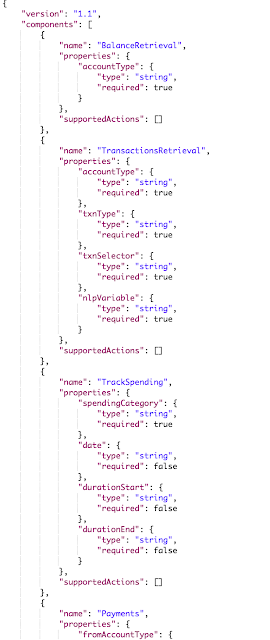
That call should return a list of sample components available to you and you should see something similar to the following payload:


You can start testing it or making changes to the registry and other functionality by editing the files
provided in the sample package. Please refer to the Oracle Mobile Cloud Enterprise documentation if needed (https://docs.oracle.com/en/cloud/paas/mobile-suite/develop/bot-components1.html#GUID-899EAAC9-2EF5-4C81-A836-F2CD4FA647DD).

Now, the next thing you should do is to enable your local server to be accessed by your Oracle Intelligent Bot and to do that I'd suggest that you use something like ngrok to create a public URL for exposing your local web server where the Bot Service will be able to reach your environment.

To make that happen, start a tunnel on your machine pointing to the port number you have ran your local server. In my case, I have started on port 3000 so I'd run ngrok like this:

 ./ngrok http 3000  

That would work for any free (un)registered account but if you have a ngrok subscription you can also setup a subdomain which helps quite a lot as you would not need to keep updating the server URL in the Bot Custom Component Service definition every time you restart your ngrok tunnel or it expires.

Anyway, ngrok will generate two tunnels for you (HTTP and HTTPS) so pick one to be used by your Custom Compoment definition.


Log in to your OMCe (Oracle Mobile Cloud Enterprise) instance, select Bots and choose the Bot you want to use. Go to the Components tab and click on the Add Service button.

Fill up all the required fields and remember that the Metadata URL should be your ngrok tunnel URL appended by /mobile/custom/bots_samples/components.

Click Create.

You should see a list of components created by expanding the recently service.


You are all set to develop your customer component locally with access from your Bot running on the Oracle Mobile Cloud Enterprise instance.

Friday, April 3, 2015

How to Change Oracle JDeveloper 12c Font Size on Mac OS X


There are a few references to this on the Internet but they all seem to describe the behavior of Oracle JDeveloper 11g and not the current version 12c.

If you, like me, have been using Oracle JDeveloper 12c on a Mac OS X and wondered how can you change the IDE's font size then look no further :) Here are the instructions that worked for me:

  • After installing Oracle JDeveloper 12c go to the Help menu and Check for Updates. Install the necessary extensions to do the kind of work you want (i.e. Mobile Application Framework) and restart JDeveloper.
  • You'll probably see an undesired font size after you restart JDeveloper like the picture below. 

  • Shut down JDeveloper and open a Terminal session.
  • Go to /Users/<username>/.jdeveloper/system12.x.x.x.xx.xxxxxx.xxxx/o.jdeveloper.12.x.x.x.xx.xxxxxx.xxxx (i.e. /Users/Marcelo/.jdeveloper/system12.1.3.0.41.140521.1008/o.jdeveloper.12.1.3.1.41.150325.1239)
  • Open the file ide.properties (you can use vi, nano, etc). Any text editor will do it.
  • Find the line Ide.FontSize.Aqua=10. It should be something similar to:
 # The default Ide.FontSize for Mac OS X.  
 Ide.FontSize.Aqua=10  
  • Update the IDE's font size replacing the lines above with the following:
 # The default Ide.FontSize for Mac OS X.  
 Ide.FontSize=10  
  • Save and close the file. Start JDeveloper again and you should see the updated IDE's font size similar to the picture below.

Monday, August 4, 2014

Oracle Mobile Application Framework Hands-On Workshops

We are kicking off the US-based series of the Oracle Mobile Application Framework hands-on workshops that are going to cover the details of the platform and get you started with Oracle mobile development in a heartbeat. By the way, this is a FREE event!
These are one-day workshops where you will get technical insights into the new product enhancements, see live demos, and best of all, get hands-on experience with mobile app development. 
All you need to do is register for the workshop, pre-install/configure the development environment (MAF) on your laptop and you will be ready to go (don’t worry, we’ll send you detailed instructions on how to do this as well as contact information, should you need it). We also plan to set this up so that you can BYOD to test out your completed app (details will be provided in the invite).
Here are the links for the currently scheduled workshops so that you can register. If you don’t see your city listed be sure to send me an email letting me know where you would like to see a workshop added – we’re working to prioritize additional workshops now and your input will be valuable.
 Click the city of interest below. 


See you at the workshop!

Saturday, February 22, 2014

An Introduction to Oracle Mobile Suite

Here is a quick overview and introduction to the Oracle Mobile Suite. There are basically four areas that the Oracle Mobile Suite helps with your mobile strategy:
  • Development of multichannel applications with Oracle Mobile Application Framework
  • Data and services integration across the enterprise with Oracle SOA Suite
  • Uniform information security across all layers of enterprise and mobile applications with Oracle Identity Management
  • Deployment and management (cloud and on premise) of multichannel applications with Oracle Cloud Application Foundation
The video below shows the core capabilities of the Oracle Mobile Suite and how can you benefit of it.


Monday, November 12, 2012

Running iOS Simulator from Command Line

I've recently migrated to Mountain Lion and it looks like I couldn't start the iOS Simulator from command line as I used to do in Snow Leopard.

Luckily, I was able to find a solution and all development is back to normal now :)

Here is how to run the iOS Simulator from command line:

$ open /Applications/Xcode.app/Contents/Developer/Platforms/iPhoneSimulator.platform/Developer/Applications/iPhone\ Simulator.app


and that assumes that you have installed Xcode under /Applications.

You can also create a script with the content above and update your $PATH variable or even create a symbolic link under your /Applications folder using the following:

$ ln -s /Applications/Xcode.app/Contents/Developer/Platforms/iPhoneSimulator.platform/Developer/Applications/iPhone\ Simulator.app/ /Applications/

Setting Up Local Environment for Developing Oracle Intelligent Bots Custom Components

Oh the joy of having a local development environment is priceless. For most cloud based solutions the story repeats itself being hard to tr...