Showing posts with label jdeveloper. Show all posts

Friday, April 3, 2015

How to Change Oracle JDeveloper 12c Font Size on Mac OS X


There are a few references to this on the Internet but they all seem to describe the behavior of Oracle JDeveloper 11g and not the current version 12c.

If you, like me, have been using Oracle JDeveloper 12c on a Mac OS X and wondered how can you change the IDE's font size then look no further :) Here are the instructions that worked for me:

  • After installing Oracle JDeveloper 12c go to the Help menu and Check for Updates. Install the necessary extensions to do the kind of work you want (i.e. Mobile Application Framework) and restart JDeveloper.
  • You'll probably see an undesired font size after you restart JDeveloper like the picture below. 

  • Shut down JDeveloper and open a Terminal session.
  • Go to /Users/<username>/.jdeveloper/system12.x.x.x.xx.xxxxxx.xxxx/o.jdeveloper.12.x.x.x.xx.xxxxxx.xxxx (i.e. /Users/Marcelo/.jdeveloper/system12.1.3.0.41.140521.1008/o.jdeveloper.12.1.3.1.41.150325.1239)
  • Open the file ide.properties (you can use vi, nano, etc). Any text editor will do it.
  • Find the line Ide.FontSize.Aqua=10. It should be something similar to:
 # The default Ide.FontSize for Mac OS X.  
 Ide.FontSize.Aqua=10  
  • Update the IDE's font size replacing the lines above with the following:
 # The default Ide.FontSize for Mac OS X.  
 Ide.FontSize=10  
  • Save and close the file. Start JDeveloper again and you should see the updated IDE's font size similar to the picture below.

Wednesday, February 4, 2015

Redirecting the log file in the Oracle Mobile Application Framework

If you have been developing with the Oracle Mobile Application Framework you already know that's not always easy to get debugging information out of the iOS Simulator or the Android Emulator.

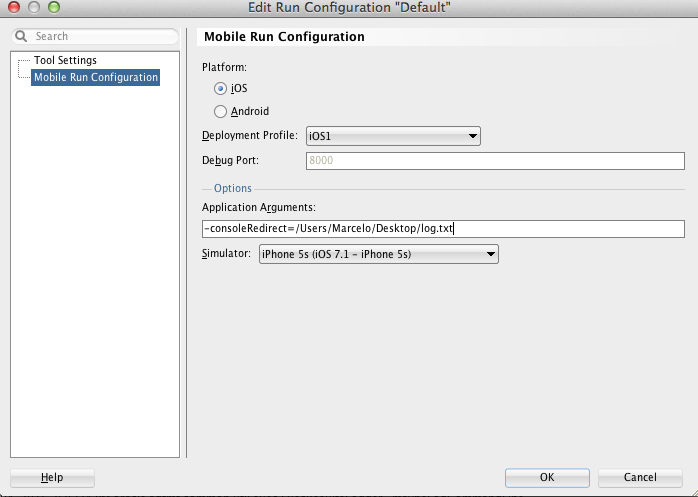
When you are running on the iOS Simulator you can now use the -consoleRedirect option and send the logging information to an easier location to find. Although you can do that in Apple's XCode, doing that in JDeveloper is quite straightforward.

Open up your MAF project in JDeveloper, select Run >>> Choose Active Run Configuration >>> Manage Run Configurations


Then, click Edit and select the Mobile Run Configuration


Add the -consoleRedirect=<Any_File_You_Want> and select the Simulator configuration (if you have multiple ones configured). Click OK.

You can now use the JDeveloper Run button (the little green triangle on the top menu) that will launch and run your app (you must use this approach to redirect the log file - that's a limitation but worth the price).

This has been tested with the Oracle Mobile Application Framework 2.1.

Happy Debugging!


Monday, January 19, 2015

Oracle Mobile Application Framework Getting Started Demo

Sometimes you just need a little push to get started on something and this is pretty much the goal of this post... to get you started with the Oracle Mobile Application Framework.

I'm a very visual person and no matter how much I read about a specific topic I prefer watching a demo or a tutorial and then I try to do something on my own.

With that idea in mind I recorded a 3-part Oracle MAF demo that covers how to get started developing a mobile app, create a new feature (module), create and customize a task flow, invoke a REST Web Service as well as a SOAP Web Service, customize the request and response for the Web Service calls, create a data control, customize the MAF AMX pages, import a local HTML resource, configure a Remote URL based feature and deploy to the iOS Simulator.

I hope you enjoy!


Part 1: Getting Started with Oracle Mobile Application Framework

Part 2: Getting Started with Oracle Mobile Application Framework

Part 3: Getting Started with Oracle Mobile Application Framework


Tuesday, December 16, 2014

How to dial a phone number from Oracle Mobile Application Framework?

Sometimes you need to dial a number from within a mobile app and for my surprise that functionality was not directly exposed through the Oracle Mobile Application Framework APIs.
Oracle MAF provides a component called Link (Go) available under the General Controls palette that can be used for navigation between pages but it can also be used to enable linking to external URLs.
Using the tel: URL scheme with the Link (Go) component gives you the capability to dial phone numbers from within an Oracle Mobile Application Framework app. 
So, here is how to do it:
On your MAF page, drag and drop a Link (Go) to the Panel Page and then set the URL in the component properties to the desired phone number. You can also use a Managed Bean to set the value if you want to do some processing before displaying the number to be called.
MAF Page source code after adding a Link (Go) component

Link (Go) component property panel

If you have mixed UI content on your Oracle MAF app and you want to get the same behavior on a HTML page you just need to add the following on your source code:
<a href="tel:+1-800-555-1234">call this number</a>
The sample code is also available here: https://github.com/mjabali/PhoneSample 

Setting Up Local Environment for Developing Oracle Intelligent Bots Custom Components

Oh the joy of having a local development environment is priceless. For most cloud based solutions the story repeats itself being hard to tr...