We all have that excuse of no time for blogging or lack of interesting content for not updating our tech-y blogs but in fact there are tons of interesting things that I'm working on right now like a JDBC over WebSocket project which seems to be a really nice thing to do and also an end-to-end prototype that we at Kaazing put together for an airline company.
Basically, the airline use case goes from backend JMS-based systems to mobile devices over WebSocket using Kaazing WebSocket Gateway JMS Edition notifying the users about gate changes and flight cancellations. You gotta see this in action! It's super cool... Since it has some proprietary systems I won't be able to show you all parts but I've been working on a generic version of it where you can install all the pieces in your machine and run the whole thing locally. Ping me if you want to take a look on that.
The other project that I'm working on is the JDBC over WebSocket which basically uses Kaazing WebSocket Gateway HTML5 Edition to connect to an Apache Camel route with a Mina component and JDBC access to a MySQL database. Everything is pretty straightforward and I'll be writing a tutorial on that in the near future. But, if you need any additional info or sample code just let me know and I'll walk you thru whatever is needed to get you going...
Stay tuned!
Showing posts with label gettingstarted. Show all posts
Showing posts with label gettingstarted. Show all posts
Tuesday, April 10, 2012
Tuesday, December 27, 2011
Getting Started with Apache Camel (Video)
In this video demonstration, published on the FuseSource YouTube channel, you're going to see how to get started with Apache Camel (FUSE Mediation Router) on a real world scenario working with a Composed Enterprise Integration Pattern (FUSE EIP).
The video demonstration talks about a Book Shop example application that receives a message from a JMS source, in this case Apache ActiveMQ / FUSE Message Broker and then split the message according to number of orders available in the message, then based on the content the message is going to be routed to different web services endpoints (provided by Apache CXF / FUSE Services Framework), after that the requests to the web services are then aggregated through the Apache Camel aggregator component and finally the resulting message is sent to a response JMS queue.
Enjoy the ride...

Wednesday, October 26, 2011
JMS and Database Integration with Apache ServiceMix, Camel and ActiveMQ
I've been asked to create a simple project to demonstrate how Apache ActiveMQ, Camel and ServiceMix could be used in the same integration context. Then, for the specific customer I was talking to, I decided to create something related to the world they were used to.
This example will process messages as they are delivered on an input queue and I thought that XML would be a good format to also demonstrate how to parse the payload and generate an SQL statement before hitting the database.
In summary, for each message going to the input queue, we're going to create a record in the database table and then generate a response message on the output queue.
I'm assuming you're already have Apache ServiceMix downloaded and installed in your machine. If not, it's time to download it… I recommend you to just go to http://fusesource.com/downloads/ and download FUSE ESB.
I'm also assuming that you already have Maven installed but if not feel free to download and install it from maven.apache.org
1) Download and install MySQL database from http://dev.mysql.com/downloads/
You can use the default test database that's shipped with MySQL and the only thing you have to do is to create a table to insert test records. To do that, connect to the database and run the following SQL statement:
2) Install the following features in ServiceMix:
3) Install commons-dbcp bundle:
4) When you do this you will receive a bundle id, e.g. 229. Enable dynamic imports on this bundle so that it can pick up the appropriate database driver.
5) Using ServiceMix hot deploy feature to deploy the MySQL JDBC driver:
Then you can verify that the driver gets deployed correctly with the following command:
and you should get a message similar to the following:
6) Download the source files of this sample and extract them on the directory of your choice. So, let's review the JMS and Database connection settings in the following resource files:
$PROJECT_HOME/src/test/resources/sample/RiderAutoPartsPartnerTest.xml
$PROJECT_HOME/src/main/resources/META-INF/spring/beans.xml file
These are the same file albeit named differently. One is used by the bundle and the other by our test case.
We'll be also using the default Apache ActiveMQ instance for the messaging aspect of this tutorial.
To check whether the ActiveMQ is installed, up and running you can run the following command:
and you should see an output similar to this
You can see the default broker's definition within the activemq-broker.xml file under $SERVICEMIX_HOME/etc/activemq-broker.xml
The database source definition is on the beans.xml file and you may want to adjust it to reflect the settings on your environment. Here is a copy of the definitions I have on my machine:
If the code builds up successfully then you're ready to deploy on ServiceMix.
8) To deploy the bundle into ServiceMix, run the following command:
A confirmation that the bundle was deployed successfully should be returned to you and a message similar to the follow one should be displayed:
Then, you are ready to start the bundle and verify if has started correctly. Follow the instructions below to do that:
To start the bundle:
To verify the bundle has started correctly:
and then a message like the following should be displayed:
You can also immediately turn on the trace logging capability for Camel and get additional output in the ServiceMix log facility. To enable the trace logging just run:
and then to see the ServiceMix log, run:
You should be able to see messages with the TRACE identifier similar to the below:
9) To test this sample project all you have to do is to send a sample message (there is one included in the $PROJECT_HOME/src/test/resources/sample directory) to the ActiveMQ queue that the Camel route is listening for. You can use any approach you like but writing a JMS Test client is pretty simple and there are tons of examples on the Internet and also available in the ActiveMQ sample directory. You can also use tools like HermesJMS which adds a little UI for you so you don't need to create a test program.
Either way, after sending a message to the partnerRequestQueue (default queue name used on this tutorial) you should see a couple of messages in the ServiceMix console like those below:
You can verify that the values were inserted into the MySQL database running a simple query like:
It is also recommended to check the ServiceMix log to make sure there are no exceptions there.
The sample code for this tutorial is available on GitHub: https://github.com/mjabali/JMS-DB-Sample
I also would like to thank my colleague Susan Javurek for putting an extra effort on this and helping out with the sample code.
UPDATE: I also would like to say a big thanks to Claus Ibsen (@davsclaus) for reminding me that all the manual steps related to OSGi bundles installation could be automated using the feature capability that consists in deploy multiple related bundles into a larger unit of deployment.
Enjoy the ride...
This example will process messages as they are delivered on an input queue and I thought that XML would be a good format to also demonstrate how to parse the payload and generate an SQL statement before hitting the database.
In summary, for each message going to the input queue, we're going to create a record in the database table and then generate a response message on the output queue.
I'm assuming you're already have Apache ServiceMix downloaded and installed in your machine. If not, it's time to download it… I recommend you to just go to http://fusesource.com/downloads/ and download FUSE ESB.
I'm also assuming that you already have Maven installed but if not feel free to download and install it from maven.apache.org
Here are the steps to create this short and simple demonstration:
1) Download and install MySQL database from http://dev.mysql.com/downloads/
You can use the default test database that's shipped with MySQL and the only thing you have to do is to create a table to insert test records. To do that, connect to the database and run the following SQL statement:
CREATE table PARTNER_METRIC(partner_id int, time_occurred DATE, status_code int, perf_time long);
2) Install the following features in ServiceMix:
features:install camel-jdbc

features:install camel-jms
3) Install commons-dbcp bundle:
osgi:install -s mvn:org.apache.servicemix.bundles/org.apache.servicemix.bundles.commons-dbcp/1.2.2_6
4) When you do this you will receive a bundle id, e.g. 229. Enable dynamic imports on this bundle so that it can pick up the appropriate database driver.
dev:dynamic-import 229
5) Using ServiceMix hot deploy feature to deploy the MySQL JDBC driver:
cp /Applications/MySQL/mysql-connector-java-5.1.18/mysql-connector-java-5.1.18-bin.jar /Users/mjabali/Fuse/apache-servicemix-4.4.1-fuse-00-08/deploy/
Then you can verify that the driver gets deployed correctly with the following command:
karaf@root> list |grep -i mysql
and you should get a message similar to the following:
[ 227] [Active ] [ ] [ ] [ 60] Sun Microsystems' JDBC Driver for MySQL (5.1.18)
6) Download the source files of this sample and extract them on the directory of your choice. So, let's review the JMS and Database connection settings in the following resource files:
$PROJECT_HOME/src/test/resources/sample/RiderAutoPartsPartnerTest.xml
$PROJECT_HOME/src/main/resources/META-INF/spring/beans.xml file
These are the same file albeit named differently. One is used by the bundle and the other by our test case.
We'll be also using the default Apache ActiveMQ instance for the messaging aspect of this tutorial.
To check whether the ActiveMQ is installed, up and running you can run the following command:
karaf@root> osgi:list |grep activemq-broker
and you should see an output similar to this
[ 66] [Active ] [Created ] [ ] [ 50] activemq-broker.xml (0.0.0)
You can see the default broker's definition within the activemq-broker.xml file under $SERVICEMIX_HOME/etc/activemq-broker.xml
The database source definition is on the beans.xml file and you may want to adjust it to reflect the settings on your environment. Here is a copy of the definitions I have on my machine:
<bean id="myDataSource" class="org.apache.commons.dbcp.BasicDataSource" destroy-method="close">
<property name="driverClassName" value="com.mysql.jdbc.Driver"/>
<property name="url" value="jdbc:mysql://localhost/test"/>
<property name="username" value="root"/>
<property name="password" value="XXXX"/>
</bean>
7) Let's compile the code then… Run the following command on the root directory of the projectmvn clean install -Dmaven.test.skip=true
If the code builds up successfully then you're ready to deploy on ServiceMix.
8) To deploy the bundle into ServiceMix, run the following command:
karaf@root>osgi:install mvn:com.fusesource.fusebyexample/camel-jms-dbase/1.0-SNAPSHOT
A confirmation that the bundle was deployed successfully should be returned to you and a message similar to the follow one should be displayed:
Bundle ID: 228
Then, you are ready to start the bundle and verify if has started correctly. Follow the instructions below to do that:
To start the bundle:
karaf@root>osgi:start <bundle ID>
To verify the bundle has started correctly:
karaf@root>osgi:list |grep <bundle ID>
and then a message like the following should be displayed:
[ 228] [Active ] [ ] [Started] [ 60] Camel JMS Database Example (1.0.0.SNAPSHOT)
You can also immediately turn on the trace logging capability for Camel and get additional output in the ServiceMix log facility. To enable the trace logging just run:
karaf@root>set TRACE org.apache.camel
and then to see the ServiceMix log, run:
karaf@root>log:display
You should be able to see messages with the TRACE identifier similar to the below:
11:46:17,095 | TRACE | tnerRequestQueue | JmsMessageListenerContainer | ? ? | 94 - org.springframework.jms - 3.0.5.RELEASE | Consumer [ActiveMQMessageConsumer { value=ID:titan.local-54477-1319240594120-6:1:1:1, started=true }] of session [PooledSession { ActiveMQSession {id=ID:titan.local-54477-1319240594120-6:1:1,started=true} }] did not receive a message
9) To test this sample project all you have to do is to send a sample message (there is one included in the $PROJECT_HOME/src/test/resources/sample directory) to the ActiveMQ queue that the Camel route is listening for. You can use any approach you like but writing a JMS Test client is pretty simple and there are tons of examples on the Internet and also available in the ActiveMQ sample directory. You can also use tools like HermesJMS which adds a little UI for you so you don't need to create a test program.
Either way, after sending a message to the partnerRequestQueue (default queue name used on this tutorial) you should see a couple of messages in the ServiceMix console like those below:
karaf@root>  **** toSql returning: INSERT INTO PARTNER_METRIC (partner_id, time_occurred, status_code, perf_time) VALUES ('123', '200911150815', '200', '9876')


 **** fromSql returning: Sample message to be returned on reply queue
You can verify that the values were inserted into the MySQL database running a simple query like:
select * from PARTNER_METRIC;
It is also recommended to check the ServiceMix log to make sure there are no exceptions there.
The sample code for this tutorial is available on GitHub: https://github.com/mjabali/JMS-DB-Sample
I also would like to thank my colleague Susan Javurek for putting an extra effort on this and helping out with the sample code.
UPDATE: I also would like to say a big thanks to Claus Ibsen (@davsclaus) for reminding me that all the manual steps related to OSGi bundles installation could be automated using the feature capability that consists in deploy multiple related bundles into a larger unit of deployment.
Enjoy the ride...
Wednesday, March 16, 2011
Getting Started with OpenSpan Events (without the server infrastructure)
So, you have heard about OpenSpan and its capabilities to collect and manipulate events from the user's desktop. Well, some people have been asking me if there is any way to start playing with OpenSpan Events without building the whole infrastructure behind it. Short answer: Yes. Instead of waiting for someone to create a database, setup the tables, install OpenSpan Events Server, figure out the transport layer (HTTP/S, JMS, etc), take a look on this short tutorial to see how can you collect events locally to make sure you're getting the information you want before you hit the server...
1. Start OpenSpan Studio (Or MS-Visual Studio if you’re using the plugin)
2. Go to File > New > Project and Create a new Empty OpenSpan Project
3. Name your project “Local Events Demo” and leave all default information selected
4. You should end up with something similar to following picture:

5. Go to Project > Add New Item and select Windows Application. I’m using a sample Windows Application and I will name it MyCRM

6. Now you have to tell OpenSpan Studio where to look for that application. Go to Properties panel and select the Path to your application executable.

7. After you select the Path to the Windows Application executable, you are ready to start interrogating your application. Click on the Start Interrogation button on the application interrogation form. If you need / want more information about the OpenSpan interrogation process please take a look on the OpenSpan Online Help here or send me your questions.

8. If the interrogation process started successfully you should see your Windows application up and running. It’s now time to select the controls that you want to get events from. To do that, drag the bulls eye icon over the control you want and then release the mouse.
9. After the interrogation process you should see the controls of the Windows application (buttons, checkboxes, text fields, etc) displaying green checkmarks next to them on the Object Explorer panel. That means you have successfully interrogated that application and should be able to proceed.
Click on the Stop Interrogation button and save the project (File > Save All).

10. On the Object Explorer, click on the high level object and then go to the Properties panel. You’ll have to change two properties:
a. MonitoredEvents – That specifies which controls and events should be monitored.

Let’s select Button (Click)…

Check Box (CheckStateChanged)…

and Text Box (TextChanged, Cut, Copy and Paste).

b. MonitorEventsMode – Specifies the type of the event monitoring to perform. Set that to InterrogatedControls.

11. Go to Project menu item and then choose Add New Item again. Select Global Container and leave the default name.
12. Go to the OpenSpan Studio Toolbox and select SampleConnector from the Events section.

If the SampleConnector component is not available, you have to select Tools menu, Select Choose Toolbox Items and then select SampleConnector (HINT: you can use the Filter feature to the get faster results as you may have lots of items to add).

Click OK
Drag and Drop the SampleConnector to the Global Container 1 canvas.
13. To configure the SampleConnector, highlight it and then go to the Properties panel.
Change the values to the following:
FileDelimiter – Comma
FilePath – C:\Temp\localEvents.csv
LogFileHandling – OverwriteExistingFile
LoggingEnabled – True

14. Save the project (File > Save All).
15. Run the project. Debug menu item and then Start Debug or simply hit the green arrow on the OpenSpan Studio icons menu.
16. Click on a few buttons, change the text of text fields, copy/paste text from different text fields, mark/unmark check boxes and then stop the project.
Here is a screenshot of my Windows application:

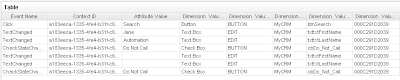
17. Go to the location you have setup the SampleConnector to record the events file and open the localEvents.csv file. You should see something similar to the following table (I’ve cleaned up the data because OpenSpan collects all events and that could be a lot ☺ ):
I hope this helps you to get started with OpenSpan Events...
1. Start OpenSpan Studio (Or MS-Visual Studio if you’re using the plugin)
2. Go to File > New > Project and Create a new Empty OpenSpan Project
3. Name your project “Local Events Demo” and leave all default information selected
4. You should end up with something similar to following picture:

5. Go to Project > Add New Item and select Windows Application. I’m using a sample Windows Application and I will name it MyCRM

6. Now you have to tell OpenSpan Studio where to look for that application. Go to Properties panel and select the Path to your application executable.

7. After you select the Path to the Windows Application executable, you are ready to start interrogating your application. Click on the Start Interrogation button on the application interrogation form. If you need / want more information about the OpenSpan interrogation process please take a look on the OpenSpan Online Help here or send me your questions.

8. If the interrogation process started successfully you should see your Windows application up and running. It’s now time to select the controls that you want to get events from. To do that, drag the bulls eye icon over the control you want and then release the mouse.
9. After the interrogation process you should see the controls of the Windows application (buttons, checkboxes, text fields, etc) displaying green checkmarks next to them on the Object Explorer panel. That means you have successfully interrogated that application and should be able to proceed.
Click on the Stop Interrogation button and save the project (File > Save All).

10. On the Object Explorer, click on the high level object and then go to the Properties panel. You’ll have to change two properties:
a. MonitoredEvents – That specifies which controls and events should be monitored.

Let’s select Button (Click)…

Check Box (CheckStateChanged)…

and Text Box (TextChanged, Cut, Copy and Paste).

b. MonitorEventsMode – Specifies the type of the event monitoring to perform. Set that to InterrogatedControls.

11. Go to Project menu item and then choose Add New Item again. Select Global Container and leave the default name.
12. Go to the OpenSpan Studio Toolbox and select SampleConnector from the Events section.

If the SampleConnector component is not available, you have to select Tools menu, Select Choose Toolbox Items and then select SampleConnector (HINT: you can use the Filter feature to the get faster results as you may have lots of items to add).

Click OK
Drag and Drop the SampleConnector to the Global Container 1 canvas.
13. To configure the SampleConnector, highlight it and then go to the Properties panel.
Change the values to the following:
FileDelimiter – Comma
FilePath – C:\Temp\localEvents.csv
LogFileHandling – OverwriteExistingFile
LoggingEnabled – True

14. Save the project (File > Save All).
15. Run the project. Debug menu item and then Start Debug or simply hit the green arrow on the OpenSpan Studio icons menu.
16. Click on a few buttons, change the text of text fields, copy/paste text from different text fields, mark/unmark check boxes and then stop the project.
Here is a screenshot of my Windows application:

17. Go to the location you have setup the SampleConnector to record the events file and open the localEvents.csv file. You should see something similar to the following table (I’ve cleaned up the data because OpenSpan collects all events and that could be a lot ☺ ):

I hope this helps you to get started with OpenSpan Events...
Subscribe to:
Posts (Atom)
Setting Up Local Environment for Developing Oracle Intelligent Bots Custom Components
Oh the joy of having a local development environment is priceless. For most cloud based solutions the story repeats itself being hard to tr...
-
 There are some use cases and business scenarios where you have to process messages in order. Basically, when multiple consumers receive mes...
 -
 Apache ActiveMQ / FUSE Message Broker has a feature called Virtual Destinations that are logical destinations (queues or topics) mapped t...
 -
 For several times I wondered what was the exact time my machine booted, woke up or slept. So, I did a little investigation to find out tha...